I am not a big fan of apps that cost money because there's always more features I'd like to have and it would cost a boatload to pay for every app that improves the Windows Mobile experience. However, in the case of Sprite Backup I'm willing to make an exception.
Sprite Backup is a pretty simple app that lets you create a complete backup of your phone, with apps, contacts, registry settings, and literally everything on your phone getting backed up. The full version will even let you schedule backups and give some more options, but I found the lite version was all I needed since it lets me intiate backups from my computer that get stored on the computer as well as initiate a backup on my phone which can store the backup to a storage card for when you're not in reach of a computer.
It's extremely reassuring knowing that if I install an experimental (or even an established) application and it ends up killing my phone, I can restore it to exactly the configuration it has today. And if I lose my phone or even upgrade to a different Windows Mobile device, I can still recover the things I want again.
Friday, April 18, 2008
Sprite backup is excellent

Tuesday, April 1, 2008
Sprint Q9C users getting Windows Mobile 6.1 this summer
Microsoft officially announced Windows Mobile 6.1 today, also releasing the fact that Sprint plans to update all current Windows Mobile 6 phones to 6.1, which is great news. Particularly because 6.1 has truly useful improvements that will make everyday tasks easier.

Major Improvements from 6.0:
- Getting Started Center
- Get help setting up your new phone—from e-mail to a Bluetooth headset, so you can start using it right away.
- Sliding Panel Home Screen
- The home screen has a whole new look. View notifications and calendar appointments. Go straight to the Getting Started Center and settings. Listen to your favorite music and view your favorite photos.
- Threaded Text Messaging
- When you text with a friend or colleague, the messages are threaded together into a single conversation, so you can view the entire conversation as you type.
- Internet Explorer Mobile Zoom Support
- Zoom in on a Web page to view small text or images.
- Internet Explorer Mobile Page Overview
- View an entire Web page at one time, navigate to a specific segment, and then select that segment for a closer view.
- Cut, Copy, and Paste
- Select and copy text from Web pages in Internet Explorer Mobile. And cut, copy, and paste text in e-mail and messaging.
- Home screen music and photos
- Music can be played/paused and photos can be viewed, all on the homescreen itself
Sprint's press release lists Summer 2008 as the date for updates to existing devices.
Friday, March 28, 2008
Move your Pocket Internet Explorer (PIE) Cache to SD
You can get Pocket Internet Explorer (PIE) to store your cache, cookies, and history to a storage card instead of to your phone. This is a really good thing because otherwise the cache can grow quite large and slow down the phone unless you clear it out regularly. In order to point PIE to an SD card there's just two steps, but one of them is a registry hack which can be risky if you've never done one before.
First, use File Explorer in ActiveSync or the File Manager on your phone and make 3 folders on your storage card like this:
\Storage Card\ietemp\cache
\Storage Card\ietemp\cookies
\Storage Card\ietemp\history
Also, make sure to clear your current cache, cookies, and history through PIE so you don't leave lingering files on your device.
Then, use a registry editor (you can find one called PHM for free) and go to
HKCU\Software\Microsoft\Windows\CurrentVersion\Explorer\Shell Folders
Edit these values:
Change the Value Data for Cache to \Storage Card\ietemp\cache
Change the Value Data for Cookies to \Storage Card\ietemp\cookies
Change the Value Data for History to \Storage Card\ietemp\history
After that, make sure to restart your phone, and you should be good to go.
View YouTube Videos
It is possible to view YouTube videos off their website without using their mobile site, where the video/audio quality is not as good. You just need to use TCPMP and the FlashVideoBundle to do so, and then it adds a nice context menu when you click on a video on YouTube's site that lets you save the video to your phone as well. You must make sure you're on the regular or classic version of the site, not the mobile one.
TCPMP is also useful in that it plays a lot of different video formats well.
There's an excellent step-by-step that works for Windows Mobile 6.0, 6.1, and I think even 5.0 here.
Thursday, March 20, 2008
Turn on Assisted GPS
I still can't tell if it has sped up the GPS acquisition time or not, but it certainly has not hurt it. Doing the following should turn on assisted GPS (aGPS) which uses cell towers in addition to GPS to get a quicker lock on your location.
You need the MSL unlock code for your phone to do this, and you can get this by calling support and saying you need it to install a 3rd party app. You may have to try more than once to get it.
Here's how to enable aGPS:
- Dial ##073887*
- Hit Send/Green Key
- Enter your MSL
- Hit H (GPS Settings)
- Enter 68.28.31.49 for the IP address
- Enter 5017 for the port number
- Save/Exit
Also this may not work the same way on other versions of the Q9 (Q9m, Q9h, etc.).
Surprise Keyboard Shortcuts, Part II
Ever wondered why you can't type a pipe character ("|") on the Q9C? Or why it's so complicated to get to the less than or greater than signs? It's actually quite easy! If you weren't aware, the longer method is to hit Fn and then CAPS when you're typing to get the full character menu. But this still doesn't have all the characters. The quicker way to access the characters is to hold down Fn and hit either of the slashes ("/" or "\"). Then, while still holding down Fn, hit the spacebar repeatedly. You'll see it cycles through a forward slash, back slash, and pipe character. Similarly, the other keys will let you get other characters by holding down Fn and hitting the spacebar after typing one of them. For instance, the opening parenthesis will cycle through a straight bracket, curly bracket, less than sign, and double arrow. Odds are the special character you need is easier to type than you expected.
Surprise Keyboard Shortcuts, Part I
I expected there would be a better way to quickly move down a webpage in Pocket Internet Explorer (PIE) than breaking your thumb on the scroll wheel or the down button on the D-Pad, and it turns out I was right. Hitting 8 triggers a Page Down, while 2 triggers Page Up.
Wednesday, March 19, 2008
Google Search Box on Home Screen
Today Google released a tool for Windows Mobile devices which will put a Google Search box right on the homescreen, saving you the steps of opening the web browser, typing google.com into the address bar, and then performing a search. Personally I find this incredibly useful and it's transparent background does not disrupt the homescreen. Check it out below: You can get it by going to http://mobile.google.com on your mobile device, and then clicking on the "Search (Download)" link.
NES Games
One of the things I was most excited about hearing was that an NES emulator had been created for Windows Mobile. For those that are unfamiliar, NES emulators can run classic Nintendo games on your computer...you just get ROM files for each game you want to play, and map the controls to your keyboard and you can play virtually any NES game you can think of.
Using PocketNesterPlus, you can play NES games on a Windows Mobile device, using the same ROMs as the PC emulator uses. The tricky part on the Q9C is getting the controls mapped right, as some keys can map to the same codes, making them unusable. Also the direction pad setup is not very intuitive. There's a great post on the everythingq.com forums that describes how to set it up right.
As for the emulator itself, it can be found with ease. The legality of such a thing is dubious, so I won't directly link to it.
Welcome!
I've found it to be quite difficult to gather information covering all the different things I've wanted to do with my Motorola Q9C, so I figured I could use this blog to make it easier for people. Or at the very least, create a repository of resources for future reference for myself. But considering the number of Windows Mobile users, I think this won't be a wasted effort.
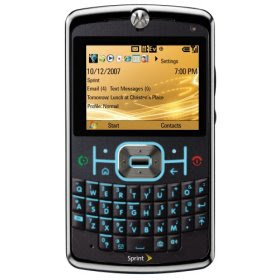
The Q9C
